- Home
- About Us
- Websites
- Performance Based SEO
- Web Marketing
- Contact Us
- Clients
- Blog
 |
||
 |
|
|
Setting up Email Account with Outlook 2003
1. Open Outlook 2003.
2. Select Tools > E-mail Accounts.
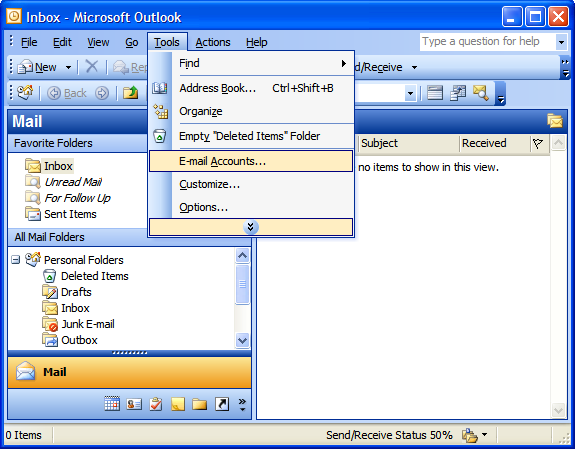
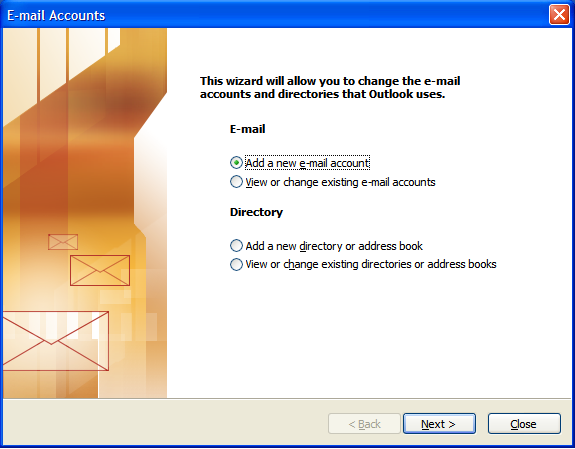
3. On the E-mail Accounts wizard window, select "Add a new e-mail account" and click Next.
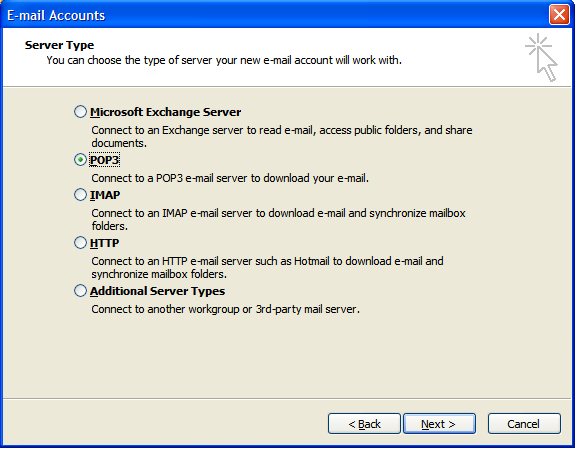
4. For your server type, select "POP3" and click Next.
5. On the Internet E-mail Settings (POP3) window, enter your information as follows:
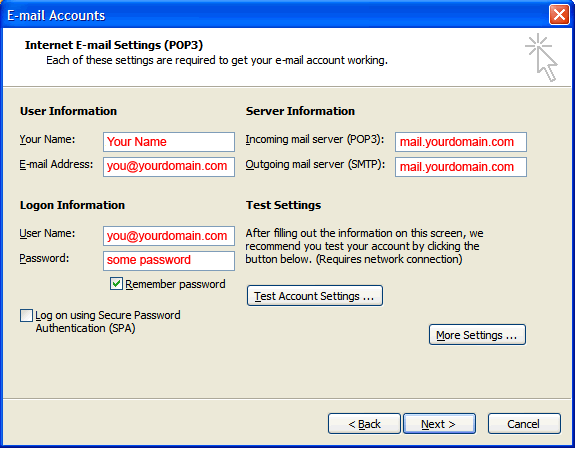
- If your ISP is Rogers Cable, the outgoing SMTP server should be: smtp.broadband.rogers.com... you may also be required to add your new email account to your Rogers/Yahoo email setup as a "third-party account". To do this, visit https://mail.yahoo.ca and login using your rogers e-mail account and password. Select "My Account" near the top of the screen. In the My Account area, look for "Alternate Email Information" and add your new email account to the list.
- If your ISP is Bell Sympatico, the outgoing SMTP server should be: smtp1.sympatico.ca
6. On the Internet E-mail Settings window, select the "Outgoing Server" tab.
7. Select "My outgoing server (SMTP) requires authentication."
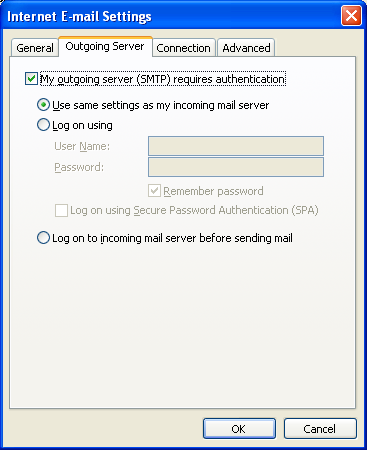
*Note: if your ISP requires you to use an alternative SMTP server (see Step 5 above), then you will need to select "Log on using" and enter the User Name and Password for your account with the ISP (e.g. your rogers or sympatico email address).
8. Select the "Advanced" tab and change the "Outgoing server (SMTP)" port to 25 or 26.
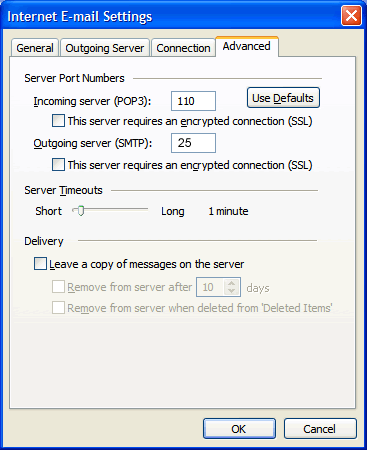
9. Press the "Test Account Settings" button. If you encounter an issue, please review the information you have entered. If the Test Account Settings is successful, press Next.
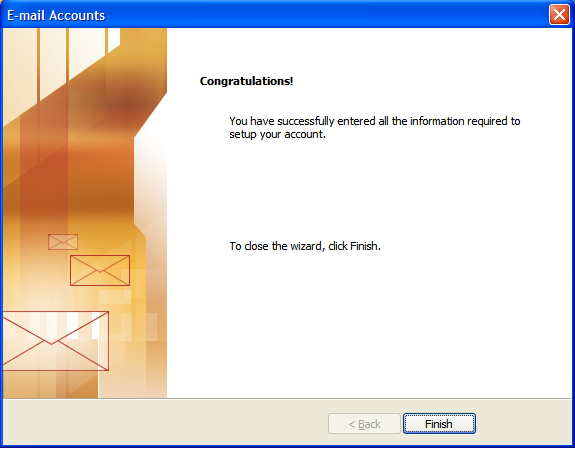
10. Click Finish.
|
|||||||
| Home Business Websites clients Performance Based SEO PPC Advertising Professional Directories Conventional Marketing Contact Us | |||||||
| © 1998 - 2026 We Think Solutions, Inc. | Privacy Policy | Sitemap | ||||||