- Home
- About Us
- Websites
- Performance Based SEO
- Web Marketing
- Contact Us
- Clients
- Blog
 |
||
 |
|
|
Setting up Email Account with Outlook Express
1. Open Outlook Express.
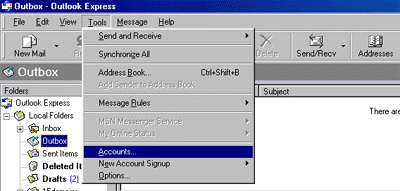
2. Go to "Tools" and click on "Accounts"
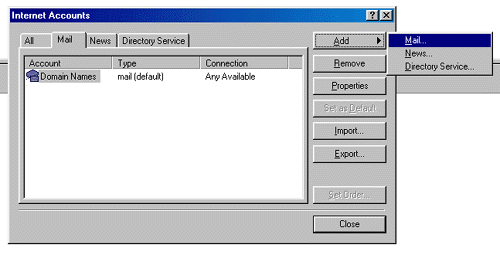
3. When the "Internet Accounts" window appears, select "Add", then select "Mail".
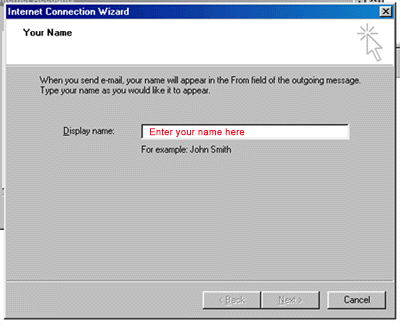
4. The Internet Connection Wizard will be launched. Enter your name where it says "Display name:" and click "Next" at the bottom right.
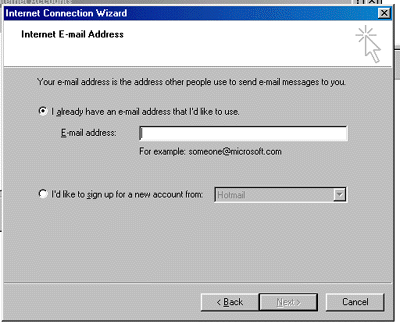
5. Enter your e-mail address in the input box. Then click Next.
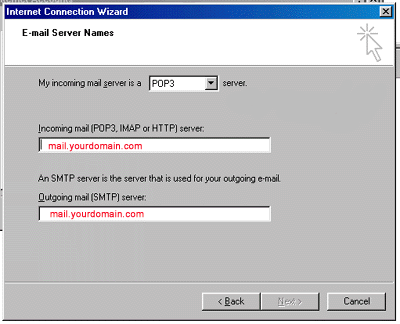
6. Setting up e-mail server names:
- Select "My incoming mail server is a POP3 server."
- In the Incoming mail field type mail.yourdomain.com
(examples: mail.wethinksolutions.com, mail.webpartners.ca - yourdomain.com is the portion of your assigned email address after the "@" symbol). - In the Outgoing mail (SMTP) field type: mail.yourdomain.com
 Invalid subpage reference "email_setup_note"
 - Click Next .
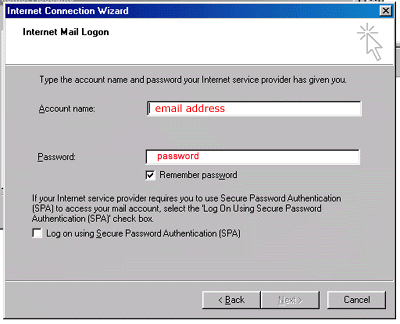
7. Type your email address into the field labelled "Account Name" and type the Password provided by your Administrator into the "Password" field.
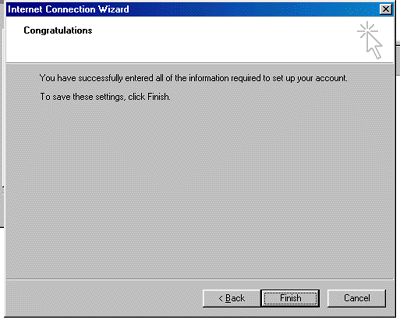
8. Click Finish.
|
|||||||
| Home Business Websites clients Performance Based SEO PPC Advertising Professional Directories Conventional Marketing Contact Us | |||||||
| © 1998 - 2026 We Think Solutions, Inc. | Privacy Policy | Sitemap | ||||||